Author Archives: irwinhkwan

Unknown's avatar

About irwinhkwan

I am a senior user experience researcher with The MathWorks, creators of MATLAB and Simulink. Previously, I worked as a postdoc at the EUSES Lab in Oregon State University. I earned my Ph.D in computer science from the University of Victoria. I have a Software Engineering degree from the University of Ottawa, and a Masters of Mathematics (Computer Science) from the University of Waterloo. I enjoy computer-based music production, hardware synthesizers, and video games.

Simplifying Your Life With Password Management

Not too long ago, I was able to memorize passwords. Like many people, I used a common set of passwords and had “tiers”.

There came a point when I suddenly stopped being able to memorize passwords. While I wish I could blame aggressive password policies, the reality is that there simply started to be too many to remember. It coincided about the same time that I signed onto Twitter, because around then I also signed up for services like Dropbox, WordPress, and continued to post on forums at ArsTechnica. It started to become a mess – I was resetting my Facebook password every time I visited the site (which is probably about twice a week) and every time I wanted to post a comment on Ars Technica. It was rather ridiculous.

In addition to managing passwords, I had to know them – I had an iPad (and now an iPhone) and if I need to check some online cloud-based service using one of them, I have to be able to access my passwords. I think the final straw was when I forgot my Mastercard Secure Code, had to reset it twice (I forgot the password as soon as I hung up the phone with the bank) and consequently ended up accidentally ordering four rice cookers from NewEgg. Fortunately they were willing to RMA them without a restocking fee, but it was a large hassle to even have to deal with that.

Buying into Password Manager Software

I eventually caved and bought into the Password Manager tools. I had heard about these here and there for a few years but had never really tried them. I caved and tried 1Password (they’re a Canadian company, actually).

I must say that the simplification that using a Password Manager affords is immense and is extremely reassuring. I now get to keep one main password in my head and I can make it as complicated as I want. In the meantime, the other ones are kept secured (and encrypted). I sync the accounts across Dropbox, and I can use both my iPad and iPhone to access them.

For those of you who don’t want to spend the money of 1Password (it’s about $50 but there are occasional promotions – I got an educational discount as well as an iSlayer coupon code; the iOS version is  $20) I’ve heard of free, open-source alternatives like KeePass. Though I haven’t used it myself, it works across multiple platforms including Windows, Linux, Mac OS X, iOS, and Android. It’s not really the specific software that counts, but the mere idea of using software to manage your hundreds of logins that reduces your cognitive load significantly.

Less Security? Maybe More?

One concern that you might have is that keeping one password instead of many is less secure than memorizing a few. This might be the case until you forget them. The problem with having to frequently recover passwords is then you’re simply using your email client as a very inefficient password manager – you’re asking the site to send you a password and then you’re using the email account’s password to keep track of things for you.

Just skip the middle man!

The alternative situation is that if you don’t know your online banking or credit card passwords, you have to call them and verify your information. This is inconvenient and time consuming, and can actually be a security risk for yourself because if you happen to be on the phone in a public place, someone might listen in on your call and catch a little too much information about you.

Manage Data, Not Just Passwords

In addition to managing passwords, 1Password also keeps data secure and encrypted too, which is a nice little benefit. I have started to put receipts and other data there, not because they’re so valuable that they need encryption, but because it’s a convenient place to look when you think, “Ah hah, I need to recover this important document.”

Browser Integration

One of the benefits of using a Password Manager is that it integrates with the major browsers through the use of Add-ons. Firefox, Chrome, Safari, and Internet Explorer have compatible extensions for 1Password. The system recognizes if you’re logging in or registering for web sites and automatically adds an entry for that web site.

Do you need to create a new password? The system has a password generation tool that you can use to create a password without the effort of having to come up with something.

While there are some limitations with the page login (it doesn’t automatically work on many financial web site logins because they are multi-stage), you can still check the passwords manually if you can’t remember them. Overall, the convenience outweighs the few situations where it does not work exactly as intended.

Synchronization

The 1Password tool also synchronizes using DropBox. Quite simply, it means that I can keep the same database across multiple computers and even on my mobile phone

Overall, I recommend the shift to Password Management Software. The simplicity that switching has afforded me has reduced my overall stress level immensely.

Using Technology To Simplify Your Life In Spite of Technology

Hi everyone!

For those of you who haven’t heard, I’ve graduated from the University of Victoria with a Ph.D and have moved on to Oregon State University doing a postdoctoral research position. I am currently working with Margaret Burnett. Her group is mostly a Human-Computer Interaction group with flavours of Software Engineering. She is especially focused on end-user programming, in which ordinary end users have to solve programming problems, like when they use Excel; as well as human interactions with machine learning systems.

There are many interesting things going on at OSU. I think it’s partly because it’s a new place, but also because as a postdoc, I have a number of additional commitments I didn’t have as a student. I’ve participated in grant proposal writing, paper writing, and similar duties, and as the postdoc in the group, I am involved across a larger number of projects than as a Ph.D student. This means that I have more things to keep track of, more meetings to go to, and more people to interact with.

While in the United States, I took the plunge and bought an iPhone 4S. This adds another level of complexity: a smartphone requires data for it to be useful, and now I have yet another device in which I have to manage data on. The iPhone is useful as a way to check my calendars, my To-Do lists, and to read papers on, but it requires a new level of organization to ensure that it can serve these purposes.

As a result of this rather increased level of complication in my life I am going to write about Using Technology To Simplify Your Life In Spite of Technology. Why the funny title? Well, technology has the ability to help you, especially through automation, but at the same time it requires time. You need to commit to keeping the devices updated and working, and you need to ensure that they’re going to be serving you.

I’m hoping that these upcoming articles will help some people gain ideas about how they can synchronize, share, and acquire knowledge, and maybe stay organized in the process. I’m sure that many of you readers are familiar with many of the tools and techniques I’ll discuss (since, after all, you might have told me about some of this stuff in the first place) but I hope that hearing about how these services are integrated together might help others out there.

The Start of a Job Search

As many of you may know, I am in the process of looking for a job at the same time as I am finishing my thesis.

I am still in the process of looking, but I thought that I would report on a few simple things that I’ve learned so far while exploring.

While there are a lot of soul-searching elements involved in a job search – you know, the philosophical, self-exploration musings that may come out as a result of having your very essence displayed out to the world to see, in a hope that there’ll be a perfect match for you, I’m going to stick, for now, with a few concrete, solid tips that I wish I knew before starting.

These three things are:

  1. Assemble your references
  2. Create a plain-text version of your resumé
  3. Keep a copy of your transcripts


1. Assemble your references. People are going to ask for references, especially in an academic position, but it’s increasingly common to have references requested up-front by industry as well. So, make sure that you get references assembled.

There’s some kind of voodoo around references. I’ve had a few people politely refuse to write letters for me because, though they have worked with me in the past, they felt that their reference would not be a strong one.

Thus, if possible, get yourself into a position where you can request letters from people early. If you’re doing a Master’s or a Ph.D and are just starting out, be sure to get yourself well-known by not only your supervisor. Do internships off-campus, work with others in teaching assistantships in the department (preferably for more than one term), and try to engage yourself in research projects with others. Be ready to keep in contact with these people.

In addition, inform your references ahead of time that you are on a job search and that they may be contacted by multiple people over the course of the next few months. Keep them reasonably up-to-date on the course of your job search as well. If you request a reference, it’s a good idea to ensure that it will be a good one – so ask specifically if they can give you a “strong reference”.

I’ve found that there tends to be two “types” of references, so to speak (three, actually, but only two are relevant for reasons I will explain below). These two types are:

  1. Research-contribution based letters
  2. Work/project/team based references

The first type, research letters, are the same kinds of letters you might have requested when you applied for graduate school or for scholarships. They are letters that are written by respected professors in the field that describe your ability to perform research and to write good contributions. The people who write on your work should be writing about your recent work. They do not necessarily have to had worked with you in the past! They just have to be familiar enough with your work (perhaps because you talk with them frequently, or they’re on your committee) to recommend you based on it. These kinds of letters are needed for any kind of academic work you might do, whether it be an industrial research lab, an academic position at a University, or a postdoc. They are required for scholarships as well. In addition, they appear in “letter” form. Be sure you inform your references ahead of time so that they can have a letter prepared.

The second type are work-related references. These tend to be more about how this person works in a team, does he do good work, have weaknesses, communicate well, and so forth. I find that the requirement for these kinds of references is that you’ve worked closely enough with the person such that they can say good things about your style of working. When doing a Ph.D, it’s more difficult to get these kinds of references overall especially because you tend to work closely with your supervisor only for the five or so years as a student. If you can, do the internships and T.A. work so that you can get this type of reference too.

The final type of reference which doesn’t need a lot of explanation is simply the “confirmation reference” where someone confirms that you in fact worked in a particular position. I’ve heard that some companies are actually concerned about legal issues when it comes to references and therefore are not allowed to get information about an employee’s working behaviour in the past. However, any of the references above should be applicable as this kind of reference as well. If someone can say something good about your work, then they can certainly confirm facts too.


2. Create a plain-text version of your resumé. I last had to go on a serious job search in about 2002 or so. The world was very different back then – you created your resumé on a single piece of paper (or two pages) and handed it to people in person much of the time. While this is still applicable, I’ve found that a large number of places do online applications only. You go to career fairs nowadays and they now say, “Apply online”.

The issue with applying online is that every single site out there requires a login and a password now, and require you to use their web-based resumé builder now. Remember when you were first making your LinkedIn profile and had to select from the drop-down boxes every position that you were in, putting in the years, the job description, the city, and so forth? Imagine now doing this for every single company for which you want to work.

The only saving grace of this process is that many (but not all) of the sites offer a way to automatically scan your resume and fill in some of the information for you. Previously, I had a PDF version of my resumé (generated by LaTeX, of course), and the online scanners would scan it all wrong. I’ve since made a plain text version and now the scanners are doing a much better job at recognizing what education is. This saves you a lot of time since you only have to fix one or two things now. Of course, not all of the sites are well-constructed and many require you to enter your information and don’t have resume scanning at all.

You also need a Microsoft Word version too, just in case the place doesn’t take plain text. Most do but not everyone does.


3. Keep a copy of your transcripts. If you are a student and are finishing, be sure to keep your GPA and transcript copies on-hand. Many employers ask for GPA. Some ask for unofficial transcripts. It helps to have this with you in advance, in soft-copy that is appropriate for emailing.


Anyway, in summary, I’ve talked about three things here: Assemble your references and how to get and sort them, and create plain-text resumés, and keep a copy of your transcripts. These are a couple of the concrete things that you can do to enable your job search, though, quite frankly, getting the materials together is the easy step.

The hard step, of course, is figuring out what you want to do, what to apply for, and figuring out how you make yourself lucky enough to get that job. Because, of course, “Luck favours the prepared”.

Enabling the LaTeX Master File on Mac OS X (and also some general Mac OS X LaTeX notes)

First of all, what is LaTeX? LaTeX is a typesetting tool. It allows you to type stuff and then formats it all together for you into a nice pretty document, usually in PDF. In this respect, it’s quite similar to Microsoft Word. The differences between the two, however, are in the way that you format the document.

Microsoft Word is visual. That is, if you want to adjust something, you usually have to do it manually. You drag a figure into the right spot, you drag the margin to the right width, or  you drag the paragraph into the correct location. Anyone who’s worked with Word for any amount of time though has encountered issues with formatting, especially when moving things around. You add a paragraph and boom, suddenly your pictures are all off of the edge of your screen!

LaTeX works differently because you specify the behaviour and the appearance of the document in addition to the text. LaTeX extensively uses templates to format your document so that you get a document that looks great no matter what you put into it. In this respect, it’s a little like HTML in that what you type into the screen doesn’t look like the final product – you need another program to make it look like the final result.

Anyway, this isn’t a LaTeX tutorial so to speak. What I really wanted to talk about are a couple of options for LaTeX on Mac OS X.

TeXShop

TeXShop is a simple GUI that allows you to easily type and compile your LaTeX.

For a long time, I used TexShop as my main LaTeX editor for the Mac. It’s a pretty nifty editor – it has good support for common LaTeX templates, it allows you to click back and forth between the rendered PDF and the position in your document to edit, and it’s very clean and simple to use. If you are looking to get up and running quickly, I highly recommend it.

The complete package for Mac is located here: http://www.tug.org/mactex

I am pretty sure that when you install MacTex, you get it by default, but if you don’t, you can get it here. http://pages.uoregon.edu/koch/texshop/

TextMate

I bought TextMate for myself a few years ago but haven’t really used it for LaTeX until recently. I began to write my thesis, and it involved many files in the project. TextMate has a nice drawer that lists the files in the project and therefore is easier to manage than multiple TeXShop windows. For this reason, I began to move to TextMate.

However, TextMate needs a little bit of modification to make it work with the ease of TeXShop.

Textmate and Skim

Skim and TextMate. The project drawer is only one reason why TextMate is a strong editor for LaTeX.

PDFSync and TextMate

To get pdfsync working, which allows you to click between your rendered PDF file and the text file in which you’re editing that text, you should get Skim. Skim is an alternative PDF viewer that was originally designed to effectively export PDF annotations. There are a few options in the LaTeX bundle in TextMate to make pdfsync work with Skim, and an option in Skim to have it work with TextMate.

Download Skim here. It’s open-source.

The LaTeX Master file: Compile a Project from any File

One of the great things with LaTeX is the use of a “LaTeX Master File”. This allows you to specify what the “main file” is of your project so you don’t have to select it every time you want to compile your LaTeX project. In my example, the master file is “IrwinKwan_PhD_Dissertation.tex” and it imports the other files. There is an option in the LaTeX bundle of TextMate to set the master file but that isn’t enough.

In TexShop or any other Editor

To use a master file setting in any LaTeX project, put the following in every one of your .tex files:

%!TEX root=your_master_file.tex

where “your_master_file.tex” should be the actual name of the master file of your project. This works in TeXShop, in TextMate, or in any other text editor.

But, you can also do this in TextMate in a more specific matter as I’ve written below.

Setting the Master File in TextMate

What you need to do is to set an environment variable. Do that as follows.

The Textmate Info Box

Click on the "Info" box. Don't forget to de-select any files you might have selected first.

First, deselect files in the drawer view. To do this click on some white space below the drawer. If you need to, resize your window so you can reach it.

Second, click on the little “I” at the bottom of the drawer.

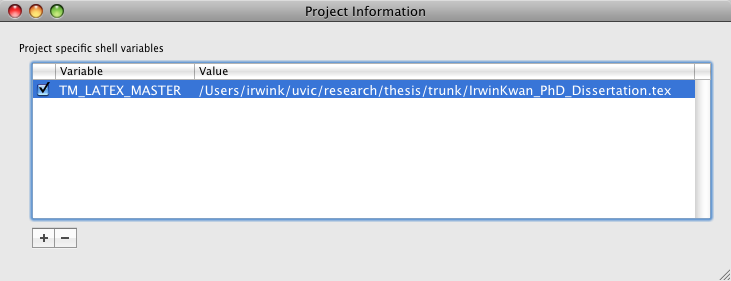
You’ll get a new window that asks for Environment Variables. Add a variable using the little “+” icon. The variable should be labelled TM_LATEX_MASTER. Give it the value equivalent to the full path of your LaTeX Master file. In my case, that’s “/Users/irwink/uvic/research/thesis/trunkIrwinKwan_PhD_Dissertation.tex”.

Setting variables in the variables window

Add the TM_LATEX_MASTER variable. The value is the full path to your master file.

Once you do that, you can then press Command-R and compile your project from any file you select (except for the master one, ironically). That was a real time-saver for me and allowed me to preview my changes from any file I was working on.

Some LaTeX Code to Help Track Your Work

Here are a few LaTeX snippets that I am using in my thesis to help me keep track of things.

A Reading Marker to help with ProofReading

I use this to highlight where in my document I’ve managed to edit up to.

% A reading marker, to help proofreading
\providecommand{\readhere}[2]{\texttt{\hl{\emph{#1:} #2}}\\
\rule{\textwidth}{0.5pt}\\%
}

A “To Do” Marker

This one makes a note in the paragraph margins and marks it with a “TODO”. Some of the code is reused from here.

% Make the fonts small
\setlength{\marginparwidth}{1.3in}
\let\oldmarginpar\marginpar
\renewcommand\marginpar[1]{\-\oldmarginpar[\raggedleft\footnotesize #1]%
{\raggedright\footnotesize #1}}

% Put the margins on the left side
\reversemarginpar

% My TODO macro
\newcommand{\TODO}[1]{%
\marginpar{\textbf{TODO:} \emph{#1}}%
}%

The iPad: Now Available in Canada

So unless you’ve been living in a cave, you’ve probably heard about the iPad. It was released in Canada today.

I’ve had an iPad for about three weeks now; I had my parents purchase one for me when they went to the United States. I’ve had an opportunity to set it up with my American credit card as well, so, unlike some early adopters in Canada, I’ve also been able to make a few purchases for the iPad that many Canadians who have an iPad otherwise would not have.

Overall, what do I think about it?

I think it’s a pretty interesting device. I use it almost every day in much the same way that most people might use a computer for consuming information. It has in fact changed the way I do some things in my daily life because of its portability and speed.

The iPad is a very sleek device. Most people who see it are rather impressed at how thin it is and how good it looks. The screen is gorgeous and much larger than most people initially think. It’s quite bright and the colours are vivid. Unfortunately it’s also slightly heavier than most people anticipate. Thus, if you’re using it to read, you will probably want to use two hands to hold it. It’s too heavy to hold for extended periods of time in one hand.

What do I use my iPad for? Well, I primarily use it to surf the web and check my mail. I have a 16 GB Wifi iPad, so it often follows me around the house for web surfing and for email. The surfing experience on an iPad is dramatically different from surfing on a PC. The touch interface really does give you a sense of intimacy, and the double-tap on the text to zoom in on a column, or pinch-zooming on items of interest gives you a large amount of flexibility in making things readable. The device is relatively fast, too – scrolling and zooming is snappy and feels good.

A lot of people envision the iPad as something on which they can take notes on, or write on. Unfortunately, it’s really not good as a virtual piece of paper. You can’t use a stylus with a real point on it (the ones you can buy are more like broad-tipped felt markers), so the precision that you get from writing is gone. The screen itself is relatively pinpoint, but you can’t really draw on it as you might with a Wacom Tablet or a Tablet PC. I don’t think that particularly matters for me personally; if you’re sketching out quick ideas, a finger is often enough to get your main ideas across. I personally use an free app called “Draw” for idea sketching.

Writing is also one of those things that the iPad does okay at, but not necessarily well. The keyboard in landscape mode is surprisingly good, it is almost the size of a normal keyboard. However, two things limit it. First, it’s a virtual keyboard, so it has no tactile feel. You can’t tell if you’re hitting the spacebar or the 123 key on it, so as a consequence your typing slows down. Second, there are many keys that are missing (such as a row of numbers and certain punctuation). While Apple’s provided a number of shortcuts and tricks to make you type faster on the iPad (a good one is that holding down the ‘comma’ button gives you the apostrophe) they don’t make you type faster than you would on a normal keyboard. As Daniel German says, “You probably won’t be writing your thesis on the iPad”. However, in contrast, you probably won’t be using a stylus to write it out, either.

If the iPad virtual keyboard bothers you, you can buy either a Bluetooth keyboard and synchronize it to the iPad, or you can buy the iPad keyboard dock. I question the value of these solutions personally; if you’re going to connect the iPad to a keyboard then you may as well buy a netbook. They’re nice options to have, but I don’t see data entry as being one of the iPad’s strengths.

What are the strengths of this device? I use it not only for web browsing and email, but it is an excellent reader. As a researcher, I found that e-ink was not good for reading PDF files, especially the two-column files that most computer science conference proceedings appear as. I tried using an iPod Touch for reading them, but that was a chore as well, the text was much too small and the device was too difficult to scroll with to make it an effective reader.

This changes with the iPad. The scrolling is excellent and the screen is large enough to allow you to resize the PDF file to whatever size is comfortable. You can easily pan around and go back and forth through the pages. I haven’t personally experienced issues with eye strain from the LCD screen, but your mileage may vary, of course. I find one advantage of an iPad is that because it’s backlit (and bright), you can easily use it as a nighttime reader. Unfortunately it is a bit difficult to read in bright sunlight. The iPad also makes it easy to annotate. While many people I know like annotating with a pencil, I’ve found it relatively unnecessary since you can use your finger and the built-in keyboard for highlighting, circling, and commenting. If you’re looking for a PDF app for your iPad, I recommend the free app Cloudreaders, which costs nothing, allows multiple ways to transfer PDFs to your device, and works wonderfully for reading. If you want to annotate your papers, and have some money to spend, then you may want to spend the money for Aji iAnnotate.

The iPad  is a wonderful entertainment device. I’ve loaded a number of music applications on it, including the Korg iElectric app, which is a virtual drum machine that allows you to export to wave files. Beatwave presents a wonderful fun way to make music, and Soundrop is an extremely simple, but wonderfully compelling application. The iPad also plays music, though I personally have not tried any streaming services. The iPad also works for movies, but I find that movies are only good if you’re on the go; if you’re at home then watching the movies on your large TV or monitor is a better experience. I hear that the iPad is a great gaming device as well but I personally have not purchased any iPad specific games.

If you’re a power user (and most of you guys reading this probably are) then you may want to consider jailbreaking your device. Spirit is available for both Mac and Windows. I recommend it because the jailbreak allows you to use the iPad for so much more than it’s been designed to do. Suddenly, you can use it as an extra drive on which to store data, or run applications in the background. You can also load your own applications on it if you’re a programmer, so you don’t have to pay Apple the $99/year if you just want to learn how to write a “Hello World” program for your iPad.

Of course, the iPad has a number of well-advertised limitations. The first is that there’s no expansion ports on it. I don’t personally see this as a problem, there’s been almost no moments when I’ve wanted to load some kind of external data onto my iPad from someone’s USB stick. The isolated iPad ecosystem makes it such that you can’t arbitrarily load movies or music on it, and you can easily get text files or other files through email on the iPad instead of through USB. I’ve heard mention of the iPad not having external memory expansion. It’s too bad that it doesn’t allow any kind of flash cards, but at the same time I haven’t really missed it either.

My primary complaint about the iPad really is the closed ecosystem, and as a consequence my worries about the device are much more ideological than functional. The $99/year developer fee is ridiculous and the restrictions that Apple puts on what apps are allowed is arbitrary; many good apps are not posted because they don’t meet some kind of invisible criteria. The device is so beautiful that if the API was expanded a bit more, there would be so much you could do with it.

Anyway, in conclusion I think that the iPad works quite well despite its limitations. I treat it primarily as a toy, but it also has a lot of work-oriented applications. I think it’s great to present data on, including diagrams and photos, and for reading information. It’s great for quick note-taking, brief idea sketching, and for playing on. If you like the idea of carrying a device that’s lightning fast and allows you to do any of the above things without any of the hassle associated with computers (handling windows, closing and opening applications, managing your applications, even waiting for applications to launch) then the iPad will meet your needs.

Running R from the command line

Much of the development and analysis work for my doctorate I do in R, which is an open-source statistics program based on the S-Plus language. Because I use R so often, there’s become a need to run the data from the command line to generate results.

One of my lingering questions has been how to script R from the command line and give it custom arguments. Here’s how you do it:

#!/usr/bin/Rscript --vanilla

args <- commandArgs(TRUE)
if (length(args) != 1) {
 print ("Usage: Rscript <script> <directory>")
 q()
}

cwd <- args[1]


Basically, the program that you run from the command line is Rscript. It came installed by default on my computer when I installed the R packages.

The first line is the shebang: #!/usr/bin/Rscript. You can specify extra command-line parameters to the Rscript command here. In this case, we use –vanilla, which means to initialize a clean environment. You can use other ones like –save, which saves the workspace at the end of the session, and –restore, which reads the previous session and restores it.

The next line is important: the commandArgs() function reads the command line arguments and stores them in a vector of strings so that you can process them. You can see that I check for arguments as well.

Finally you can address each argument using args as an array.

If you need to parse out the arguments you can try using match.arg to match individual parameters!

Type ?Rscript in the R environment to get the manual page for details.

Transcoding video for import into iMovie

I’ve been getting a bit into the habit of taking camcorder footage of things that I go to now, editing them in iMovie’09, and then posting them on Facebook and YouTube.

However, I’ve had some issues trying to transfer video from an HD camera I’ve borrowed, the JVC Everio GZ-HD7U. It’s a handy camera with a large hard drive and a decently-long lasting battery, but it’s not very compatible with iMovie — if you connect it to a Mac and try to import the movies, it simply doesn’t let you import them directly.

I’ve tried a few things, mostly transcoding with ffmpegX, but every time I did so it resulted in really bad motion artifacts that band across my movie. Today, I finally discovered a good compromise and the solution is actually much easier than I would have thought.

The short answer:

ffmpeg -i infile.mpg -target ntsc-dv outfile.dv

The expanded answer is that even though the camera records internally as MPEG-TS, it’s in some kind of compressed format and needs to be transcoded. The way that I do this is:

  • Plug the camera into my computer using the USB Cable.
  • Turn on the camera.
  • Using the camera’s options, select “Back up onto PC”. The camera will mount itself as a drive on the computer. The drive layout will probably vary based on what you’ve been recording, but in general it’s laid out with a bunch of directories named PRG000, PRG0001 and so on.
  • Within these directories, copy all of the .TOD files onto your hard drive.
  • Once the files are on your hard drive, export them to DV format using the ffmpeg command: ffmpeg -i infile.mpg -target ntsc-dv outfile.dv

I use the following shell script to do this.

#!/bin/sh

suffix=.TOD
files=`find . -name "*.TOD"`

for movie in $files; do

infile=`basename $movie`
outfile=`basename -s $suffix $infile`.dv
ffmpeg -i $infile -target ntsc-dv $outfile

done

If you don’t have ffmpeg installed on your Mac, you can do it with MacPorts (type sudo port install ffmpeg and ports should do the rest*).

I hope this helps some of you!

NOTE:
Using this method converts stuff into standard NTSC resolution (apparently, I don’t know enough about video transcoding). Now, the “original” movies are filmed at 1920×1080 (HD 1080) resolution, but if I copy the TOD files onto my computer and play them, I get nice funny artifacts. This leads me to suspect that the camcorder’s compression kind of plays tricks on playback or something – makes it seem like they’re HD1080 when the files are in fact not even close to that. So the issue of course is that when you use the DV output format with ffmpeg, you end up scaling your movies down to 720×480. The odd thing for me is that the movies are still widescreen. I don’t know how this works or if some programs are fooled and all I truly do know is that the movies look better. But, this leads me to believe that if you buy a camcorder that says “full HD” it might actually not be full HD even if it claims that it can film in 1920×1080 resolution.

Just my two cents, if anyone can help fill me in on video formats please let me know.

* I did have a problem with installing from ports, and it was due to an outdated gettext Perl module. What I ended up needing to do was to delete all of my ports and recompile. I am suspecting the issue was because I installed all of my ports on Leopard, and upgrading to Snow Leopard without recompiling all of the ports caused problems.

Listing the contents on a web server without listing directories

I seem to require this snippet of code quite often.

This PHP code will list the contents of a web server’s directory. It will list only files, and not directories (so it’ll skip the parent directory link which shows up by default on most Apache Index files).

<?php
if ($handle = opendir('.')) {
	while (false !== ($file = readdir($handle))) {
		if ($file != "index.php" && strncmp($file, ".", 1) != 0) {
			echo "<li><a>" . $file . "</a></li>\n";
		}
	}
	closedir($handle);
}
?>

Putting a LaTeX header on top of your manuscript

If you’re like me, you’ll have a lot of draft versions of your documents that you print out, and then you lose track of which version is the latest one. Wouldn’t it be nice to have the date and time of your document on the top of each page?

Using LaTeX’s fancyhdr package, as well as the time package, it’s pretty easy to put in a header the date and time at which the document was generated at the top of every page. Use the code below at the top of your document.

Just make sure you comment out the appropriate lines (\pagestyle{fancy} and \thispagestyle{fancy} before you make a camera-ready version.

\usepackage{fancyhdr}
\usepackage{time}

%-------------------------------------------------------------------------
% take the % away on next line to produce the final camera-ready version
% Be sure to remove \thispagestyle{fancy} as well after the \maketitle.
%\pagestyle{empty}
\pagestyle{fancy}

\newcommand\myTime{\now}
\fancyhead{}
\fancyhead[CO, CE]{\texttt{-Manuscript Draft-}}
\fancyhead[RO, RE]{\texttt{\today, \myTime}}
\setlength{\headheight}{2\baselineskip}
\renewcommand{\headrulewidth}{0pt}
%-------------------------------------------------------------------------

\begin{document}
\title{My paper's title}
\author{Author's name}
\maketitle

% You need this here, or else the first page won't have a header.
\thispagestyle{fancy}

\begin{abstract}
Abstract goes here
\end{abstract}